Rolling Upgrades allow deploying new VCL files to agents one at a time with a configurable interval between each agent. This enables canary-style deployments where new VCL can be verified on a subset of agents before applying to all.
A regular VCLGroup deployment compiles and applies new VCL files to all matching agents at once. A rolling upgrade takes a different approach: agents are upgraded sequentially, one at a time, with a configurable wait interval after each agent completes. This gives operators time to verify that new VCL behaves correctly on each agent before proceeding to the next.
Rolling upgrades work with both file-based and git-managed VCLGroups.
A rolling upgrade follows this lifecycle:
--auto-apply was specified at creation.Each agent in a rolling upgrade has one of these states:
When creating a rolling upgrade with --auto-apply, if all agents succeed, the rolling upgrade is
automatically applied as a regular deployment to the VCLGroup. This is useful for fully automated
canary pipelines where manual intervention is not needed if all agents pass.
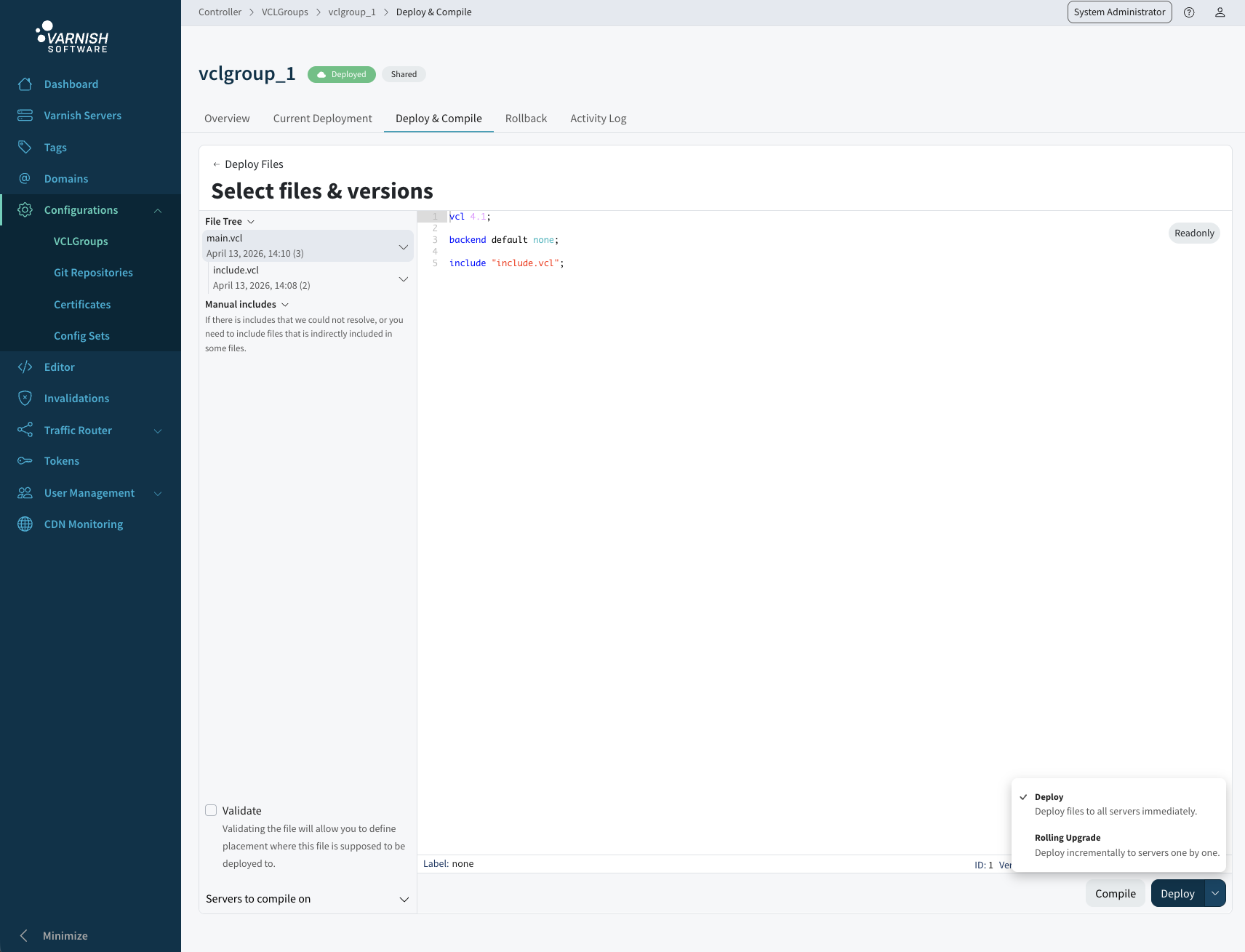
Open the VCLGroup and click Deploy Files. On the deployment-type step, pick Manual for a file-based VCLGroup or Git for a git-managed one, then continue to step 2.
The primary action button is a split button with a dropdown, choose Rolling Upgrade instead of the default Deploy, then click the button. The Rolling Upgrade option is disabled if the VCLGroup has not been deployed yet, or if a rolling upgrade is already active for it.
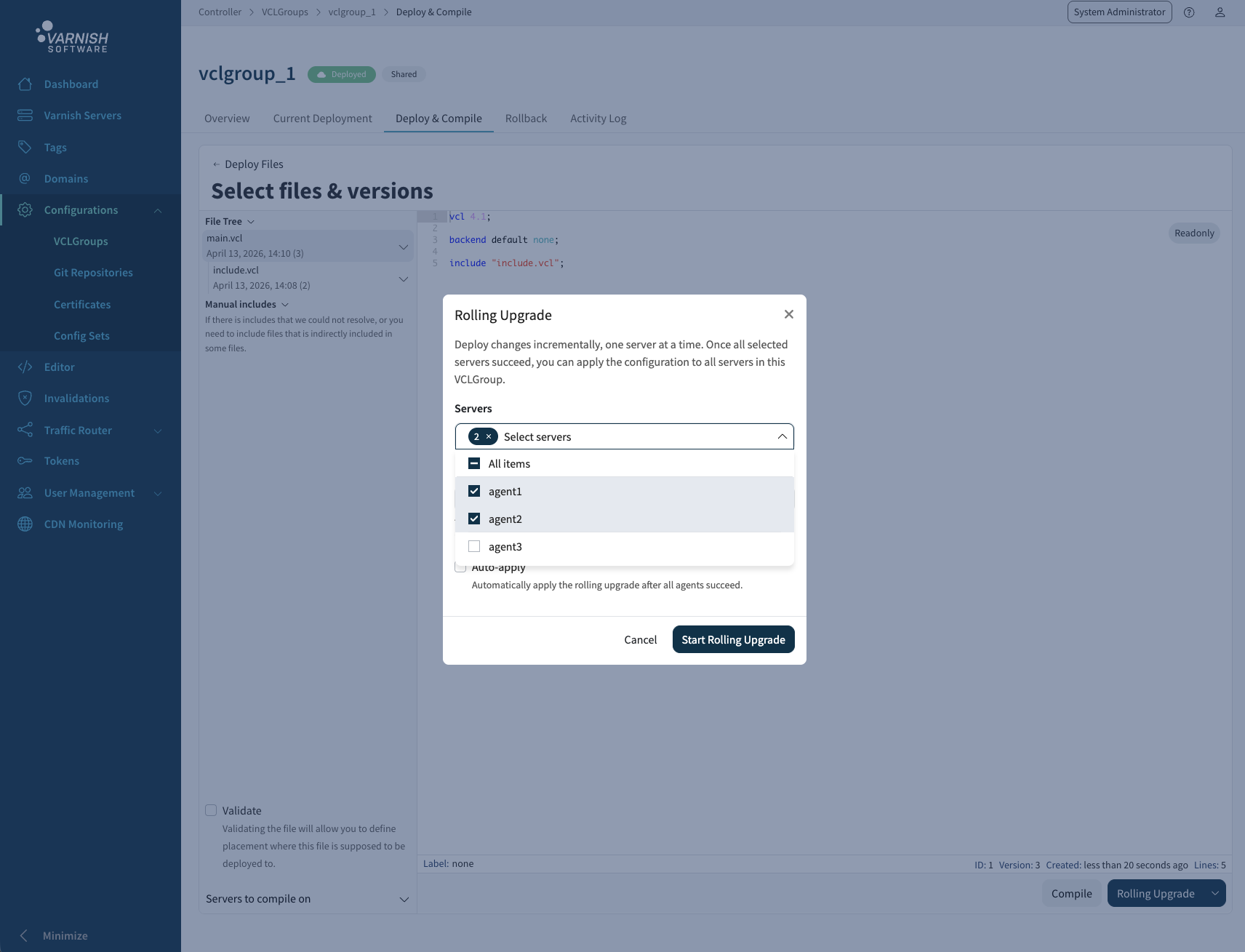
A dialog opens where the rolling upgrade is configured:
Click Start Rolling Upgrade to create it.
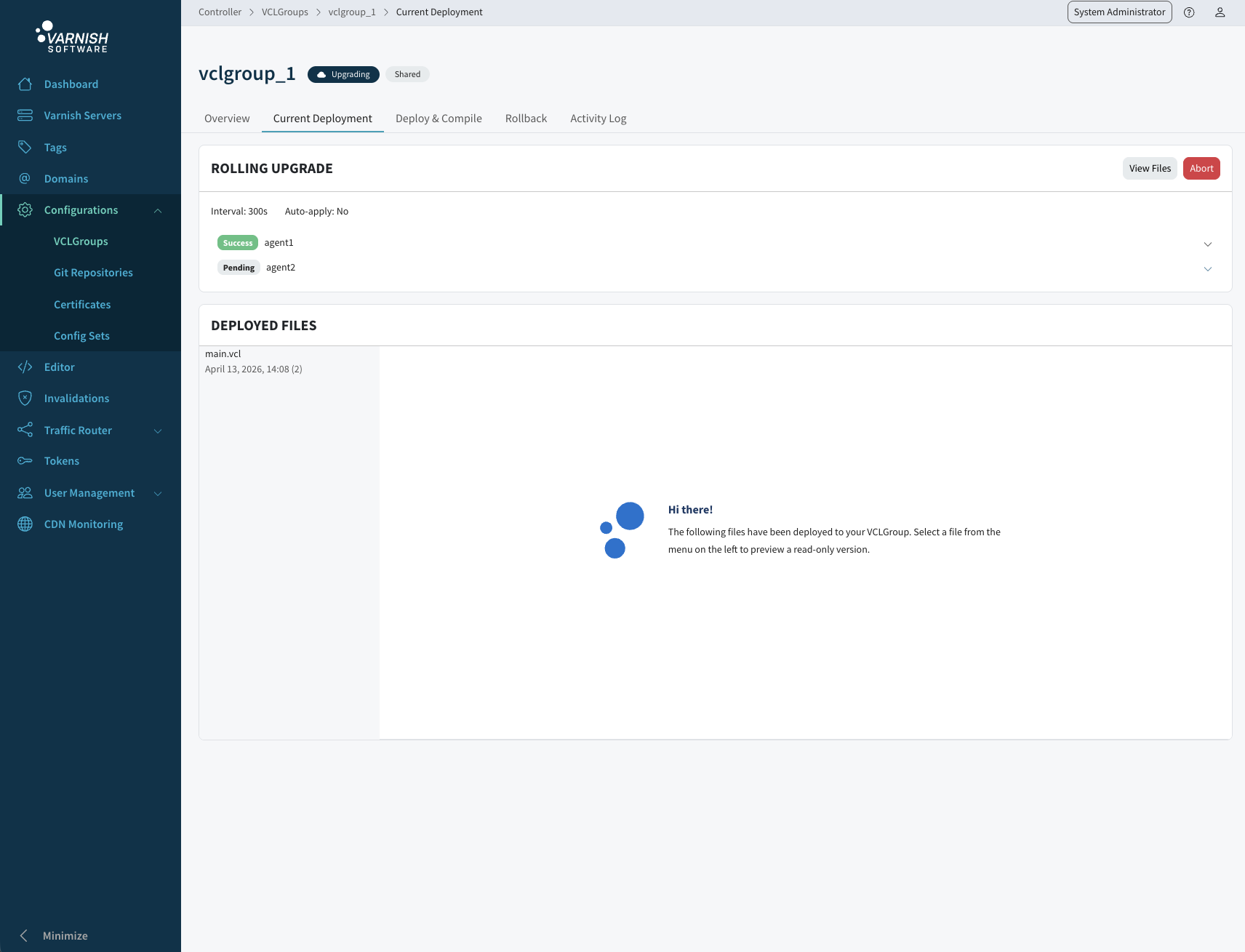
While a rolling upgrade is active, the VCLGroup’s Deploy & Compile tab shows the rolling upgrade panel instead of the deploy wizard. It follows the run: progress and remaining time, what is happening right now (the server being upgraded, or the time left of the interval), and every selected server in deployment order with its state and timings. Under Files being rolled out, each file can be expanded to see the diff against the currently deployed version.
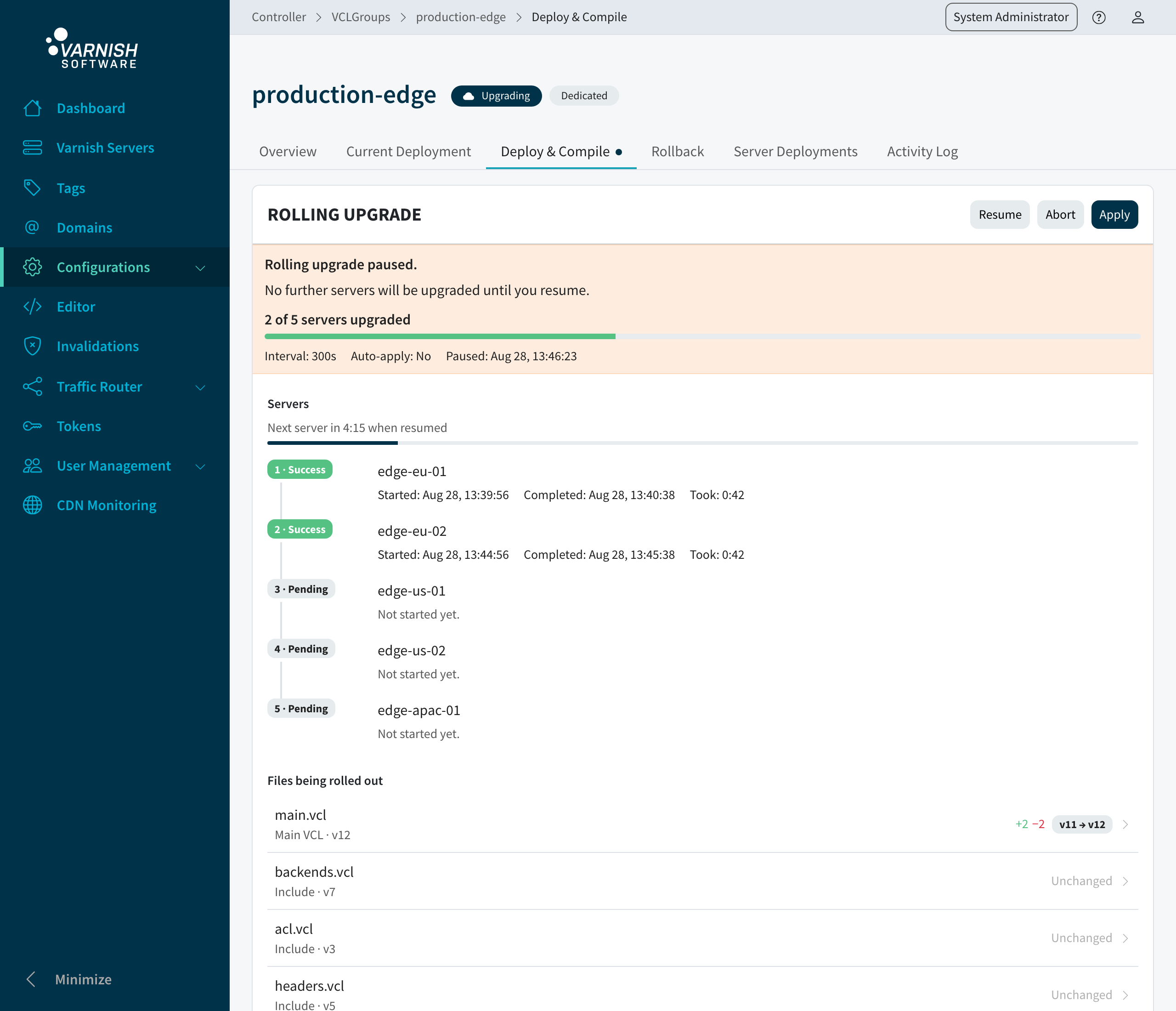
Pause stops the rolling upgrade from starting any more servers. A server that is already being upgraded is allowed to finish, and the progress made so far is kept. The panel notes when it was paused, and the countdown to the next server is held until the run continues. Resume picks it up where it left off.
While the interval between two servers is counting down, an Upgrade next button is shown above the server list. It starts the next pending server straight away instead of waiting the interval out.
The button is only offered while the rolling upgrade is running and no server is currently being upgraded. It is therefore not available on a paused rolling upgrade. Resume it first.
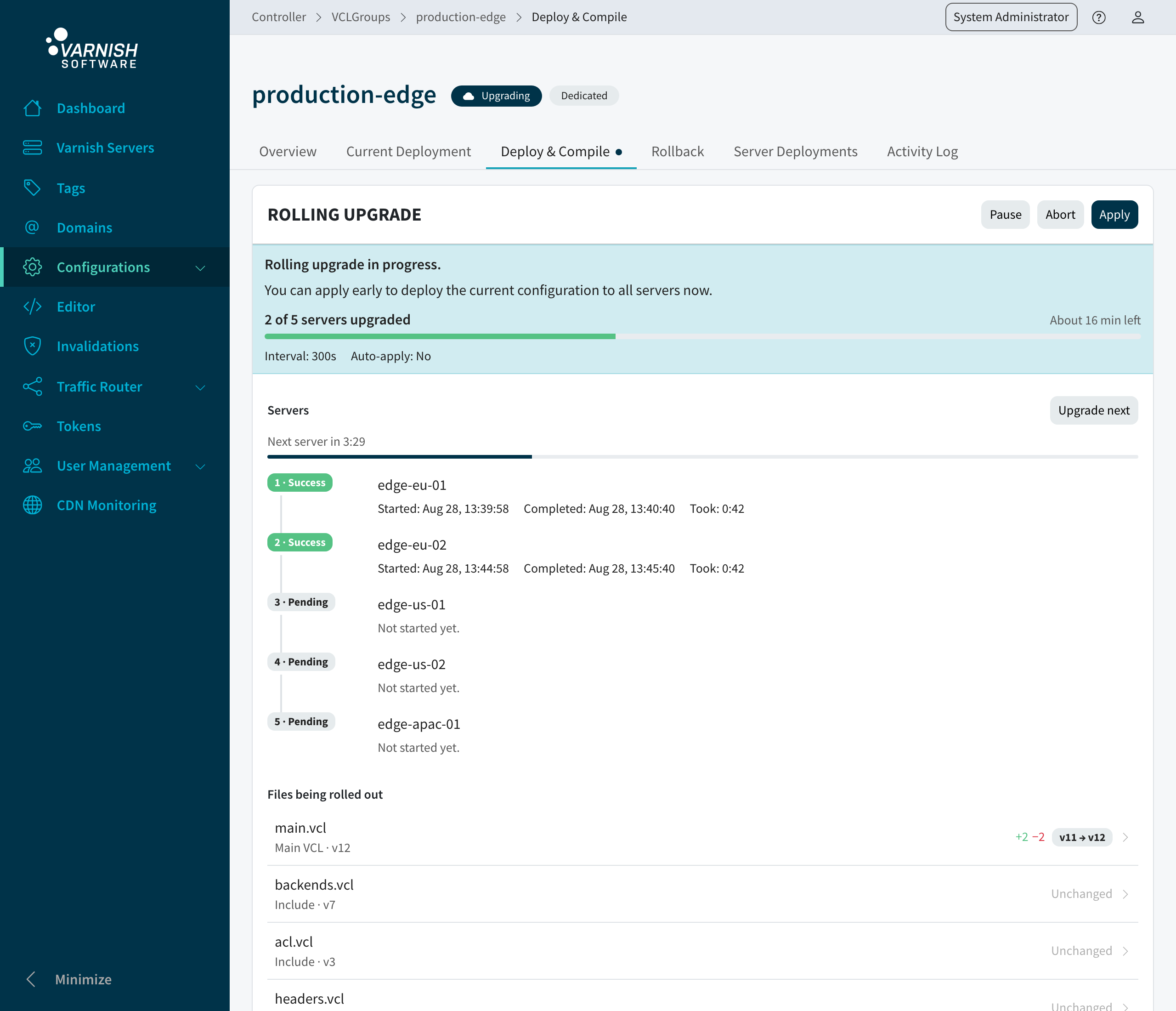
Apply makes the upgrade permanent across the VCLGroup. It can be used as soon as one server has succeeded, which deploys the new configuration to the remaining servers at once, and is the natural last step once every server has been upgraded. If the rolling upgrade was created with Auto-apply, this happens automatically once every server succeeds.
To cancel an active rolling upgrade and revert the servers that were upgraded, click Abort. After confirmation, the regular deploy, undeploy, and rollback actions become available again for the VCLGroup.
For file-based VCLGroups, specify the main VCL and optional includes. The order of agent deployments is determined by their position in the rolling upgrade command.
# Deploy to all matching agents with 1 minute interval
vcli vg rolling-upgrade create 1 --vcl 5:2 --includes 6:1,7:3 --interval 1m

# Deploy to specific agents with 30 second interval and auto-apply
vcli vg ru create 1 --vcl 5:2 --agents 10,11,12 --interval 30s --auto-apply
For git-managed VCLGroups, specify a branch, tag, or commit:
# Deploy latest commit on a branch
vcli vg ru create 1 --git-branch main --interval 30s --auto-apply

# Deploy a specific tag
vcli vg ru create 1 --git-tag v2.1.0 --interval 1m

# Deploy a specific commit
vcli vg ru create 1 --git-commit abc123def --interval 45s
vcli vg rolling-upgrade status 1
This shows the rolling upgrade status for the VCLGroup, including the state of each agent.
Since version 7.6.0, a running rolling upgrade can be paused. A paused rolling upgrade keeps its progress but does not start any new agents until it is resumed.
vcli vg rolling-upgrade pause 1
vcli vg rolling-upgrade resume 1
The status output shows (paused) next to the interval while paused.
To deploy the next pending agent immediately, without waiting for the configured interval:
vcli vg rolling-upgrade next 1
next is refused while the rolling upgrade is paused. Resume it first.
Apply the rolling upgrade to make the changes permanent across the VCLGroup. At least one agent must have succeeded.
vcli vg rolling-upgrade apply 1
Abort the rolling upgrade and revert all changes made to agents during the upgrade.
vcli vg rolling-upgrade abort 1
The Controller (brainz) processes rolling upgrades on a 60-second safety interval as well as immediately upon creation and completion signals. Each agent is deployed sequentially based on its position in the order. After each agent completes, the system waits the configured interval before deploying to the next agent.
If auto-apply is enabled and all agents succeed, the rolling upgrade is automatically applied as a regular deployment to the VCLGroup.